PITCHOMETRY USER MANUAL
OVERVIEW
Pitchometry is a pitch shifter that can produce multiple pitch shifted versions of the input to create harmonies, chords, or choruses. Each pitch shifted sound is referred to as a voice, and the main control panel lets you adjust each voice individually.Voices:
When opening the effect you will have one voice and it's controls will be seen in the center. You are on Voice 1 of 1 Total Voices as shown on the side. Clicking new will add a voice meaning you have 2 voices mixed. You can switch back between the voices and click DELETE to delete a voice if you desire.Pitch Shift
Controls:
Pitch
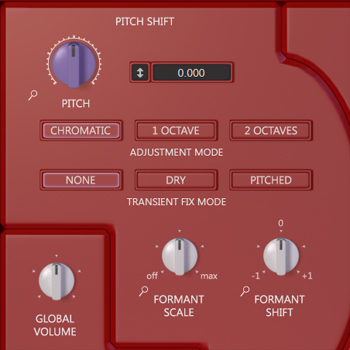 The large knob knob controls the pitch, shown in the black box next to it.
You can enter in a pitch value with the number keys by clicking the black box as well.
There is also a fine tuning control, used by clicking the left square in the black box and holding the mouse button and dragging up or down.
If you want to use pitch shifts beyond one octave up or down make sure you have "2 Octaves" selected in Adjustment Mode.
The large knob knob controls the pitch, shown in the black box next to it.
You can enter in a pitch value with the number keys by clicking the black box as well.
There is also a fine tuning control, used by clicking the left square in the black box and holding the mouse button and dragging up or down.
If you want to use pitch shifts beyond one octave up or down make sure you have "2 Octaves" selected in Adjustment Mode.
Adjustment Mode
Chromatic just means you can get 0 to +12 or -12 on the main pitch knob. 1 Octave allows the same 12 note range but will allow decimal numbers. 2 Octave is the same but with twice the range.Transient Fix Mode
Sometimes shifted notes have the short attack or clicks blurred in time. Transient Fix Mode may fix this for you but it depends on what kind of sounds you are shifting. When in doubt, set it to NONE. Set it to dry to use the original signal as the source. Set it to Pitched for normal Transient Fix to take effect.Tip: Pitched mode is not suitable for pitch shifts greater than +1 octave, and you should set it to NONE in that case.
Formant Scale
Think of formant as a way to fix the frequency response of the shifted note. If the resulting sound is too dull or too bright or squeaky you need to apply formant correction. Formant scale takes the pitch value and tries to compensate the right amount, it affects different pitches differently. Setting it at 50% is normal compensation and at 100% is exaggerated compensation. Setting it to 0 will turn it off but the Formant Shift knob will still take effect if not set to 0.Formant Shift
FORMANT SCALE tries to compensate based on the pitch value but FORMANT SHIFT will ignore the pitch value and set the formant effect manually. Turning the knob right gives a higher toned sound and left gives a lower toned sound. To disable formants it must be at the 50% position (pointing at 0).Global Volume
This is just a convenient knob to adjust the output of the plugin without having to change the voice volume for each voice. A knob with the word GLOBAL is the same setting even if you change voices etc.Voice Volume
The volume of the voice.Voice Pan
Turn left or right to fade the voice between the left or right speaker.Modifiers
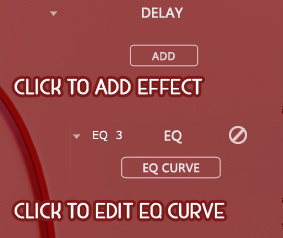 Modifiers can customize a voice in many different ways, each section is different but they are all managed by a setting system where each modifier you add is called a patch.
Click the magnifying glass icon that is next to the voice knobs to view modifier patches, and the same goes for the effects that are to the right of the voice panel. Inactive patches are patches that are in use by another
voice and discarded ones are not in use at all and will be removed automatically.
Modifiers can customize a voice in many different ways, each section is different but they are all managed by a setting system where each modifier you add is called a patch.
Click the magnifying glass icon that is next to the voice knobs to view modifier patches, and the same goes for the effects that are to the right of the voice panel. Inactive patches are patches that are in use by another
voice and discarded ones are not in use at all and will be removed automatically.
Delay
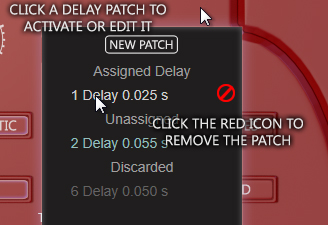 This modifier is an effect that will delay the voice based on the DELAY value. Feedback will make it a continuing echo.
Setting MIX somewhere in the middle will let you echo while keeping the dry signal present so that there is no delay before the initial audio.
Adjust the LFO Rate and Amplitude to get a modulated delay, capable of sounding like chorus or vibrato, or giving a variable delay.
The LFO shape can be adjusted with MODULATION SHAPE.
This modifier is an effect that will delay the voice based on the DELAY value. Feedback will make it a continuing echo.
Setting MIX somewhere in the middle will let you echo while keeping the dry signal present so that there is no delay before the initial audio.
Adjust the LFO Rate and Amplitude to get a modulated delay, capable of sounding like chorus or vibrato, or giving a variable delay.
The LFO shape can be adjusted with MODULATION SHAPE.
Tip: Using a lot of delays causes a lot of CPU usage, because they process in separate channels. You can combine multiple voices into one delay channel by clicking the magnifying glass icon and giving them the same modifier patch.
EQ
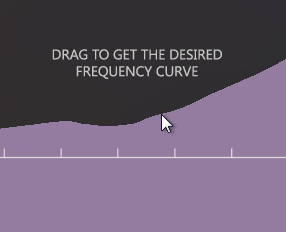 This applies a high resolution graphic equalizer to the voice. Simply draw the spectrum you want with the mouse.
A high pass can be achieved by dragging from the left to the right, starting at the bottom and ending at the top.
The frequency axis is listed at the bottom and the boost/cut amount is on the right.
This applies a high resolution graphic equalizer to the voice. Simply draw the spectrum you want with the mouse.
A high pass can be achieved by dragging from the left to the right, starting at the bottom and ending at the top.
The frequency axis is listed at the bottom and the boost/cut amount is on the right.
Harmony
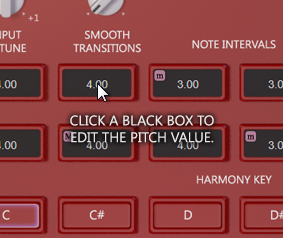
You can achieve an octave up or other simple pitch effects without the harmony functions, the purpose of the harmony modifier is to give you a pitch value that responds to the pitch you play. To get started add the harmony modifier to a voice, select a KEY (C) and go to the mixer section and turn up the global dry volume. Now playing in that major scale will be accompanied by the voice playing an interval of a major or minor third.
What if you want the A minor scale? First remember that C major is the same notes as A minor, so you can use C major in it's place. As a second option, you can enter in the numbers for any harmony you wish for any scale. The 12 black boxes correspond to the 12 notes in an octave, starting at C if the C key is selected, D if the D key is selected, and so on. Select CUSTOM at the top and enter in the intervals you wish. Entering 4 means 4 semitones higher and -4 means 4 lower, +24 and -24 are the maximum and minimum. The notes between the notes of the desired scale should be set to the preceding note value in most cases.
INPUT DETUNE will offset the tuning if the input instrument isn't tuned exactly to the standard scale. For example if the instrument is a little sharp turn this knob slightly to the right.
SMOOTH TRANSITIONS will apply some smoothing to the harmony part's pitch. This helps when you are using bends and vibrato a lot.
DRY VOLUME is the input dry signal, it can also be set in the MIXER.
GLOBAL GATE does not affect the sound it is only used to gate out background sounds if you are having trouble with the harmonizer detecting pitch improperly. Adjust this only if there are problems. Turning it all the way to the left turns it off.
Parameter Modifiers
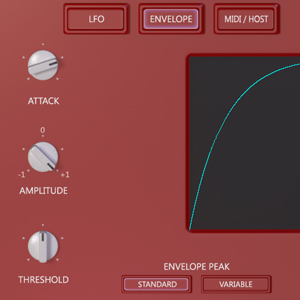
To apply a modifier to a parameter, say the main pitch parameter, click the magnifying glass icon near the control. Click NEW in the box. You will now have 3 choices for parameter modifiers.
LFO modifies the parameter in a repeating pattern, at speed controlled by Speed, amplitude by Amplitude, and the pattern shape can be Triangle, Sinusoid, or Random. It can be used for vibrato, tremolo.
ENVELOPE modifier responds to the input level to modify the parameter with controls for Attack Speed, Amplitude, and Sensitivity. It can make notes slide in, fade in, or do an effect similar to envelope filter.
MIDI/HOST mode can accept various external inputs to control parameters. Set the menus to the desired MIDI control option or Host Parameter. Set the MIN knob to a low value and the MAX knob to a high one for normal operation. Setting the MIN knob higher than the MAX knob will reverse the effect. Setting the parameter range to "-1 to +1" will increase the range and make it possible to go below the voice parameter knob's current setting. Setting the MIDI menu to "MIDI Keys Mode" when assigning it to the pitch parameter will make the pitch respond to the keys played on a midi keyboard, ie C = +1, C#=+2.
MIXER
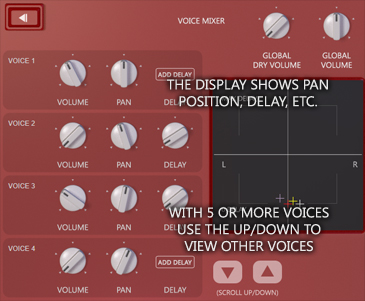
The mixer lets you adjust the volume and pan of several tracks at once. You can show different tracks by pressing the up and down arrows. Global dry volume and output volume are adjustable on the top right. The delay feature can be further adjusted in the voice panels. The grid shows voices positioned by delay and pan.
How To Save Presets

Presets can be saved in the host program's interface, for example the save options shown in this image. Exporting as a file will create a normal file that holds the preset while you may also be able to save the preset as a program wide built in preset. Exact interface and features depend on the host program.